

I built Lemonize because my best ideas kept dying somewhere between a keyboard shortcut and the right Obsidian note. It worked. Then I noticed something slightly embarrassing: most of my ideas don’t show up when I’m sitting in front of my Mac.
They show up in the car. In a queue at the bakery. Halfway through a walk, or while I’m reading an article on my phone at 11 p.m. The Mac-only version of my capture tool solved exactly half of the problem — the half where I was already at my desk.
Quick disclosure before going further: I’m the developer of Lemonize. I built it, I sell it, and I obviously want you to try it. But I’m also its most demanding user — everything below is my real, daily setup, not a feature tour.
Capture happens everywhere, thinking happens in one place
My knowledge lives in Obsidian. Local Markdown files, a vault I own, a structure I’ve spent years refining. None of that changed. What changed is that I stopped asking Obsidian to be my capture tool.
On mobile, Obsidian is a desktop app on a smaller screen. It loads the vault, shows me folders, and waits for me to decide where things go. That’s perfect for thinking. It’s terrible for an idea whose shelf life is measured in seconds. When the friction of capturing is higher than the friction of forgetting, I forget. Every single time.
So I split the jobs. Capture has to be instant, available from anywhere, and free of any filing decision. Organizing happens later, in the vault, with a clear head. I explained the Mac side of that decision in I Built the Capture Feature Obsidian Was Missing. This article is the complete picture: how Lemonize now covers my Mac, my iPhone and my iPad, and how it decides where each thought lands.
My Mac reflex: one shortcut, one mode
On the Mac, the gesture has become muscle memory:
- I copy what I want to keep with ⌘C — a sentence from an email, a paragraph from a PDF, a line of code.
- I press ⌥L. The capture panel floats above whatever I’m doing, with the copied text already sitting in the body as a Markdown quote.
- I type my own thought underneath, add a tag or two as small pills in the action bar.
- If I don’t feel like writing a title, the sparkles button asks Apple Intelligence to generate one — on-device, nothing leaves the Mac.
- ⌘↩. Done. I’m back where I was.
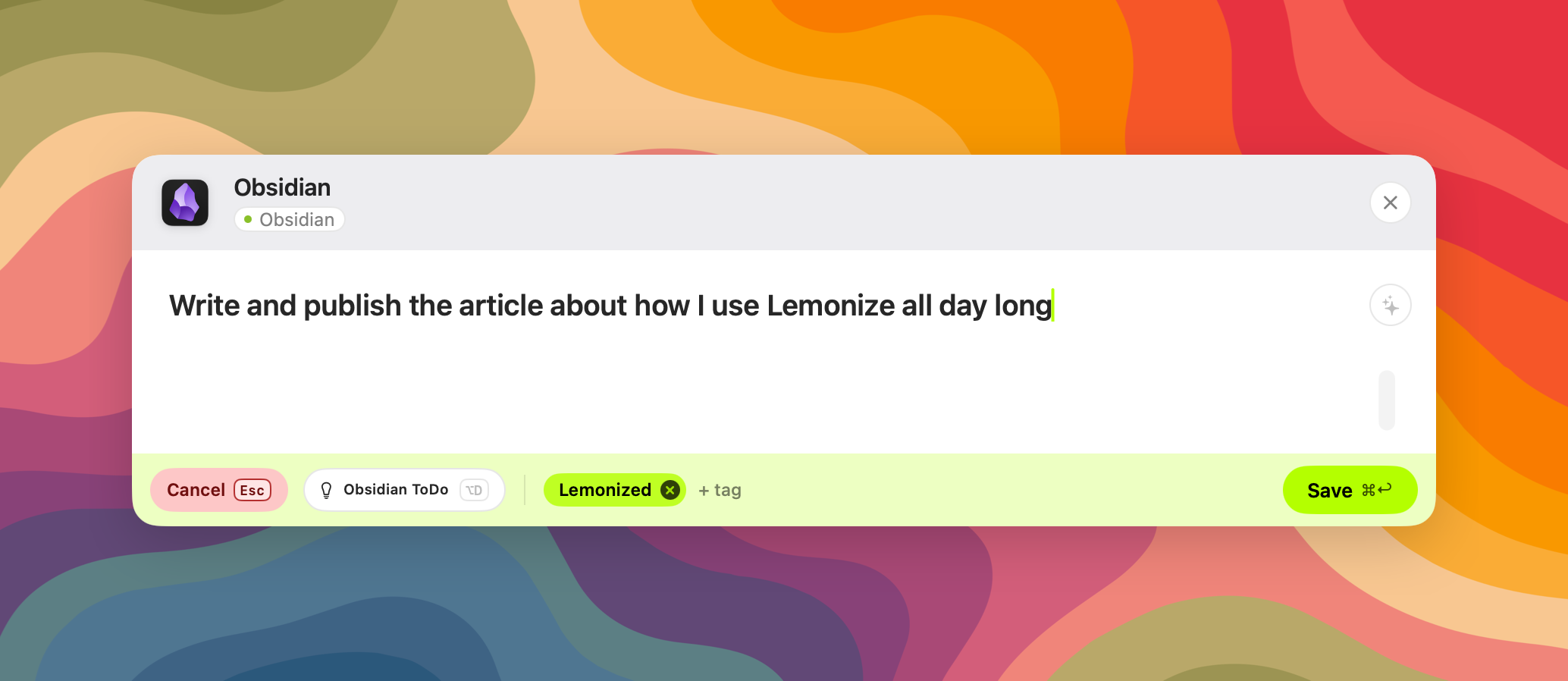
The panel stays out of my way the rest of the time. I keep it on Always, so clicking elsewhere doesn’t dismiss it, but Draft and Fresh exist if you prefer the panel to hide when you look away. And no, it doesn’t need Accessibility permissions — it only reads what I explicitly copied.
The interesting part isn’t the panel, though. It’s the small selector next to the Save button.
Capture modes: the part that changed how I work
In Lemonize 1.3, everything about where and how a capture is written lives in one place: capture modes. A mode is a recipe. It defines the destination, the shape of the note, its metadata, and what happens automatically. On the Mac, the settings show each mode in four numbered steps — Destination, Note shape, Metadata, Automation — with a live preview on the right that renders the exact note Lemonize will write before I save anything.
I use three modes, and they cover almost everything I capture:
- Obsidian Note — creates a brand-new note in my vault’s inbox folder, with a date-prefixed filename and a frontmatter I designed once: tags, source app, capture timestamp. This is for ideas that deserve their own file: an article angle, a concept I want to develop, a reflection worth keeping.
- Obsidian Daily — appends the capture to a section of today’s daily note, with the time and the title as a small heading. This is my journal of the day: something I noticed, a decision made in a meeting, a sentence I don’t want to lose but that doesn’t need its own note yet.
- Obsidian Todo — inserts the capture as a checkbox in a dedicated tasks section of my daily note. More on that one below.
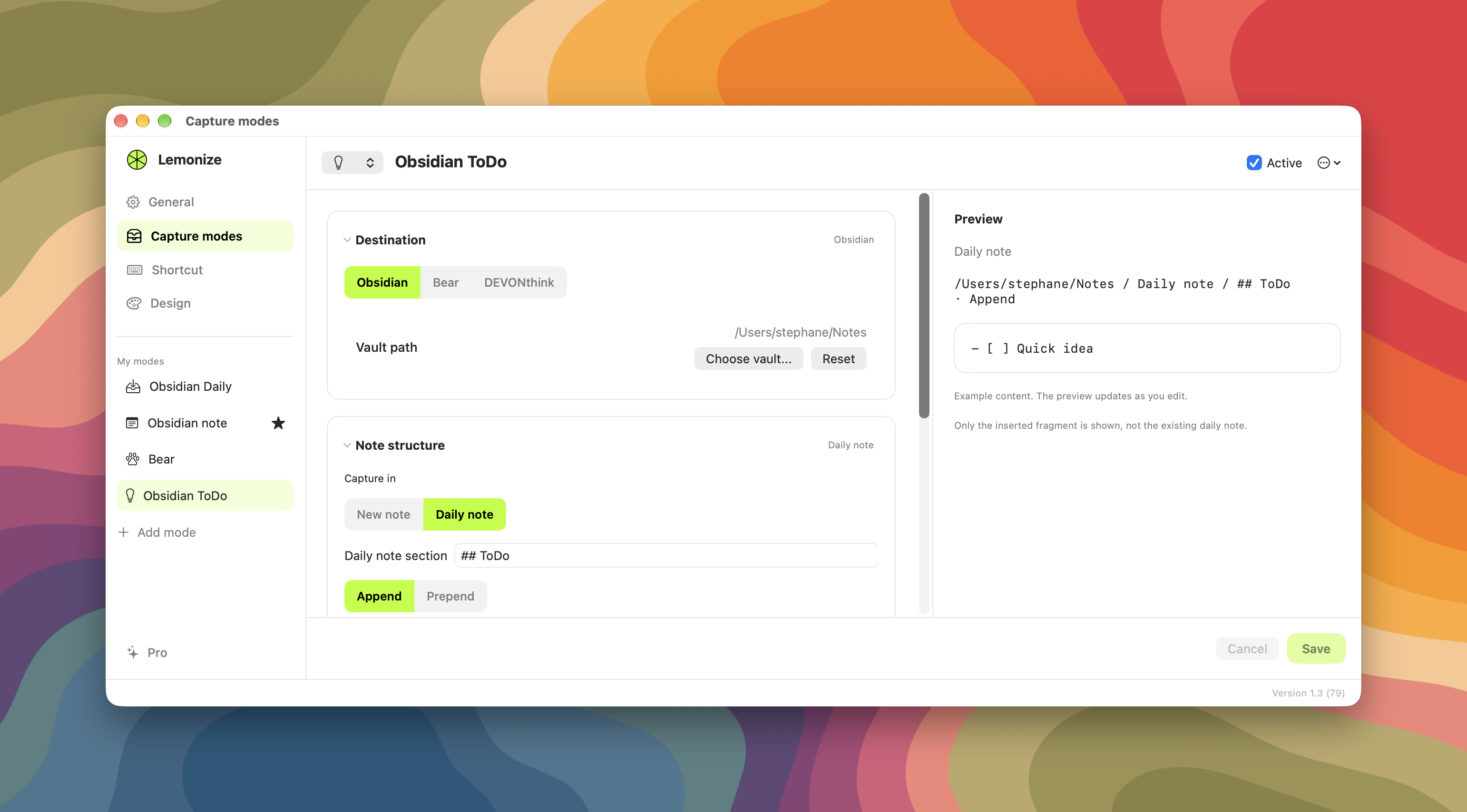
Switching between them takes one keystroke: ⌥D cycles through my active modes while the panel is open. Hovering the selector shows a short summary of where the note will go, which is useful when you have more modes than I do.
Let me be clear: choosing a mode is a decision at capture time, and I’ve argued many times that capture should require none. But it’s one decision instead of five. I don’t pick a folder, a template, a tag set and a date format — I pick an intent. Is this an idea, a moment of my day, or something to do? That question takes less than a second, and it’s the only one Lemonize asks.
One more detail I care about: modes are shared across devices, but the choice isn’t forced. My Mac remembers the mode I last used locally, while my iPhone and iPad start from the shared default. Each device keeps its own habits.
Todos without opening a task manager
Obsidian Todo is the mode I didn’t expect to use this much.
A task manager needs four things to earn my trust: fast capture, a clear view of today, the confidence that nothing is lost, and visual calm. Most tools spend their energy on the last three and make the first one harder than it should be — open the app, pick a project, set a date, maybe a tag.
With Lemonize, “call the accountant back” or “check the CloudKit schema before shipping” takes three seconds: ⌥L, ⌥D to Obsidian Todo, type, ⌘↩. The task lands as an unchecked box in today’s daily note, exactly where I review my day in the evening. If today’s daily note doesn’t exist yet, Lemonize asks Obsidian to create it with my own template first, then inserts the task in the right section.
It doesn’t replace a real project manager for complex work, and it isn’t meant to. It replaces the sticky note, the “I’ll remember it”, and the email I used to send myself.
On the go: Lemonize Pocket
Lemonize is now a universal app. On iPhone and iPad, the companion is called Lemonize Pocket, and it’s built around one assumption: the phone is a capture surface, not a second vault.
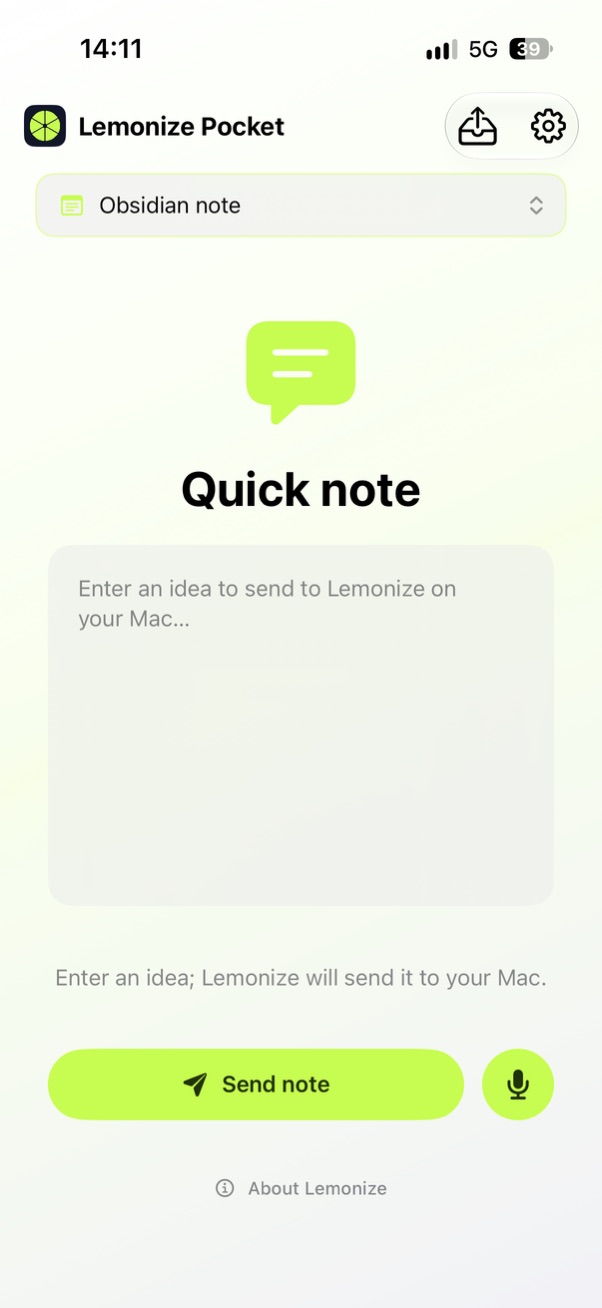
Pocket opens directly on a capture screen with two modes :
- Quick Note — type a thought, pick a capture mode, send.
- Quick Voice — tap, talk, stop. The recording also starts from a home-screen widget, from Control Center, from the Lock Screen or the Action Button, without even opening the app.
Here’s what happens next, and it’s the part I’m the most proud of architecturally. The capture is saved on the device first, then travels through your own private iCloud container to your Mac. There’s no Lemonize account, no login, no server of mine in the middle. The Mac receives the capture, applies the mode I chose on the phone, and writes the note into Obsidian — using the exact same recipe as a capture made at my desk. Voice memos are transcribed locally on the Mac, then saved like any other text.
In practice, I dictate an idea for an article while walking, choose Obsidian Note, and when I sit down at my desk the note is already in my vault, transcribed, titled, tagged and formatted. A todo spoken in the car ends up as a checkbox in my daily note. A tiny notification tells me the capture was processed.
A tip from experience: speak in blocks. One thought, a pause, the next thought. A fifteen-minute monologue becomes a wall of text you’ll never reread; short chunks become usable notes.
The share sheet: saving links and snippets
The second way I capture on iOS isn’t in Pocket at all. It’s in the share sheet.
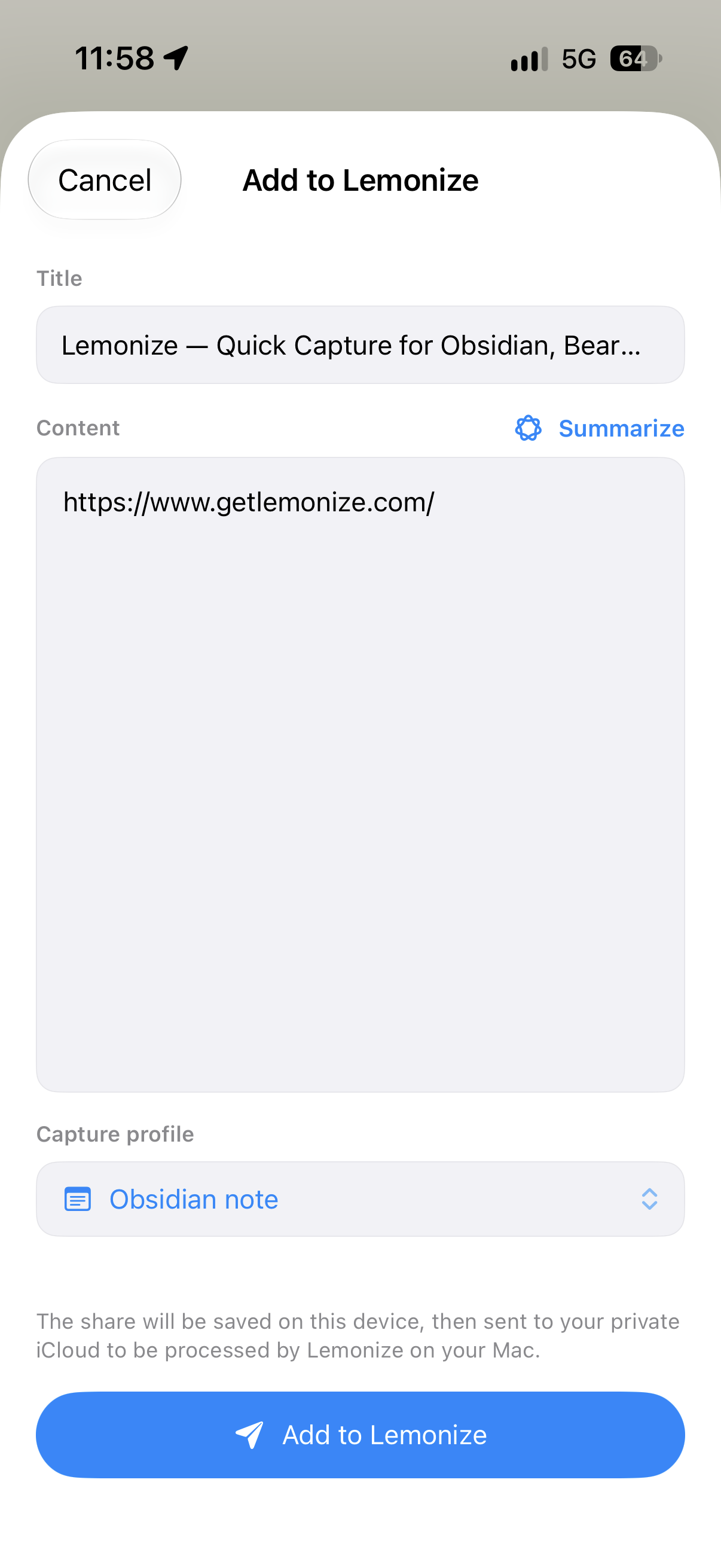
When I read something in Safari that I want to remember, I tap Share, then Lemonize. The extension grabs the page title — which I can edit — and its URL. On iOS 26, a Summarize button can generate a short on-device summary, which I review and adjust before sending. I pick a mode, tap send, and the share sheet closes. The link lands in Obsidian with its source URL, plus the summary if I asked for one.
It works with text too. A paragraph selected in any app, a message, a quote from an ebook: share it to Lemonize, add a line explaining why it matters, and it joins the same pipeline.
That “why it matters” line is the real value. A bare URL in a note is a dead link waiting to happen. A URL with one sentence of intent is a thought I can act on later.
Where Lemonize stops: Obsidian Web Clipper still owns the web
Here’s something you don’t often read from a developer promoting his own app: for web content, Lemonize is not my favorite tool. The Obsidian Web Clipper is.
When I want to keep the content of a page — the full article, clean, readable, with my highlights — Web Clipper does it better than anything else I’ve tried. It extracts the main text and strips menus and ads, applies my templates, and drops everything into my Clippings folder, where my PKM process picks it up. I described that pipeline in how I made Claude the librarian of my Obsidian PKM, and it hasn’t changed.
So the split is simple:
- Web Clipper keeps what a page says. Full content, destined to become permanent notes.
- Lemonize keeps why a page matters to me. A link, a title, a sentence of intent — or a quick summary when I’m on my phone and don’t have time to read.
The two tools don’t compete. They answer two different questions, and I’d rather use two tools that each do one job well than one tool that does both badly.
What this setup asks in return
This setup isn’t free of constraints, and some of them are deliberate.
The Mac is the processing center. Your iPhone and iPad capture, but the Mac writes. If the Mac is off, asleep or Lemonize isn’t running, your captures wait safely in iCloud until it wakes up — nothing is lost, but nothing lands in the vault either. That’s the price of keeping vault access and write permissions on the Mac only, and I’d make the same choice again.
You need the same Apple Account with iCloud on every device. That’s what makes the whole thing work without a Lemonize account — and it’s also the requirement.
The share extension handles text and links. Images, PDFs and files aren’t supported yet; Lemonize tells you so instead of silently dropping them.
Modes are configured on the Mac. Pocket shows them and uses them, but you build the recipes at your desk.
And the most important one: making capture effortless means you’ll capture more. Every note is a small promise to future you — to read it, sort it, act on it or delete it. I wrote a whole piece on why the inbox is the most dangerous folder in my Obsidian vault. Lemonize removes the friction of getting ideas in. It doesn’t remove the need to review them.
Who it’s for, and what it costs
Lemonize is for Apple users who want to capture ideas wherever they happen, without stopping to open, navigate and organize inside their notes app.
If your notes live in Obsidian, Bear or DEVONthink, Lemonize gives you a faster way to send thoughts, links, voice captures and todos where they belong — from your Mac, iPhone or iPad. Everything I’ve described with Obsidian works with Bear and DEVONthink too, except for daily notes, which are specific to Obsidian.
You get 20 free captures to see if Lemonize fits the way you work. After that, it’s €7.99 once for lifetime access, or €1.99 a month if you prefer a subscription. One purchase covers your Mac, iPhone and iPad.
You’ll find everything on getlemonize.com, or directly on the App Store.
Capture where the idea happens
For years, I tried to make my notes app work everywhere. It never did, and I blamed the app. The problem was that I asked one tool to do two opposite jobs: be instantly available at the moment of an idea, and be deep enough to think in.
Lemonize takes the first job so Obsidian can keep the second. On my Mac, it’s a shortcut. On my phone, it’s a tap, a voice memo or a share. Wherever I am, the idea goes to the same place, in the shape I decided once.
Capture where the idea happens. Think where the vault lives.
Where do your ideas usually die when you’re away from your desk?